
USB Drive
USB Drive shows a disk image from the card to a computer as a CD-ROM or a USB disk. The computer can then start from it: an installer, a rescue system or a live Linux. In progress: built and tested in the simulator; it has not run on the player yet.
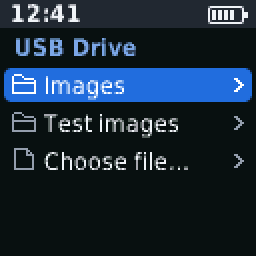
Putting images on the card
Copy .iso or .img files (also .bin, .raw, .vhd) into a folder
called Images at the top of the card: connect the player and choose
File transfer, or use any card reader. A file copied in one go is
usually stored in one piece. A file stored in more than 682 pieces cannot
be shown: the app says "The file is too fragmented"; copy it to the card
again (on a card with free space, or after freeing space).
Presenting an image
- Home › USB Drive › Images, then OK on the image. Choose file… browses the whole card; other files are shown dimmed.
- Check the options and press OK on Connect:
| Row | Meaning |
|---|---|
| Mode | CD-ROM for an .iso (as a DVD above 700 MB), Disk for anything else. Fixed disk is for computers whose boot menu lists only fixed disks. Many Linux ISO files also start as a Disk |
| Read-only | Always on: the computer cannot change your image |
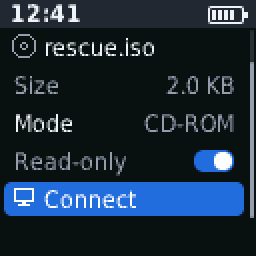
- Connect the player to the computer with the USB cable (or keep it connected). The screen shows the image, the mode, whether a computer uses it, and how much it has read.
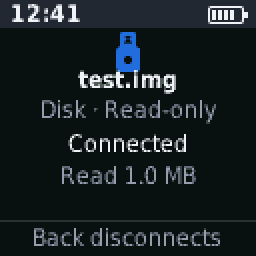
- Start the computer from the drive: its boot menu (often F12, F11, F8 or Esc while it starts; Option on a Mac) lists the player as "Orpheus USB Drive".
While the image is shown, the card belongs to the computer: music, Files, Pictures and the Recorder wait. Back disconnects; eject the drive on the computer first. Ejecting it on the computer also ends it. You can also open USB Drive from Files (OK on a disk image) or from the "computer connected" question (Present disk image…).
Test images
The folder .orpheus/images holds test images for the developers. It is
listed as Test images when it exists. Only these images can be
presented writable, and only in developer mode; the computer can then
change the image's contents but never its size or any other file.
Not yet
In progress: starting with an image when the cable is plugged in while holding Next, a list of the last images used, and showing the transfer rate in the status bar.